Has your trusty Android phone started to feel like it’s trudging through mud? You’re not alone. Many users experience a noticeable slowdown in their device’s performance over time. Consequently, apps take longer to open, scrolling becomes choppy, and even simple tasks feel like a chore. However, before you consider splurging on a new phone, there’s good news. Often, a slow Android phone can be significantly improved with a few simple tweaks and maintenance steps. This guide will walk you through effective strategies to speed up your phone, getting it back to its prime.
Why Do Phones Slow Down Over Time?
Firstly, it’s important to understand why your phone might be slowing down. Your Android device is a mini-computer, and just like a PC, it can get bogged down by various factors. For instance, common culprits include:
- Full Storage: When your phone’s internal storage is nearly full, it struggles to operate efficiently.
- Too Many Apps: A plethora of apps running in the background can consume RAM and CPU resources.
- Outdated Software: Older operating systems might not be optimized for newer apps, or they could have unpatched performance issues.
- Excessive Cache Data: Apps store temporary files (cache) to load faster, but this data can accumulate and become counterproductive.
- Resource-Intensive Features: Live wallpapers, heavy widgets, and excessive animations can drain resources. Thankfully, addressing these issues is often straightforward. Let’s dive into the fixes!
10 Effective Fixes to Speed Up Your Phone
Here are ten practical steps you can take to speed up your Android device. Follow these clear steps to see a real improvement in your phone’s performance.
- Restart Your Phone Regularly
This might sound overly simple, but a regular reboot is incredibly effective. It clears out temporary glitches, closes background processes, and refreshes your phone’s memory.
How to do it:
- Press and hold the power button.
- Select “Restart” from the options.
- Do this at least once a week for optimal performance.
- Clear App Cache Data
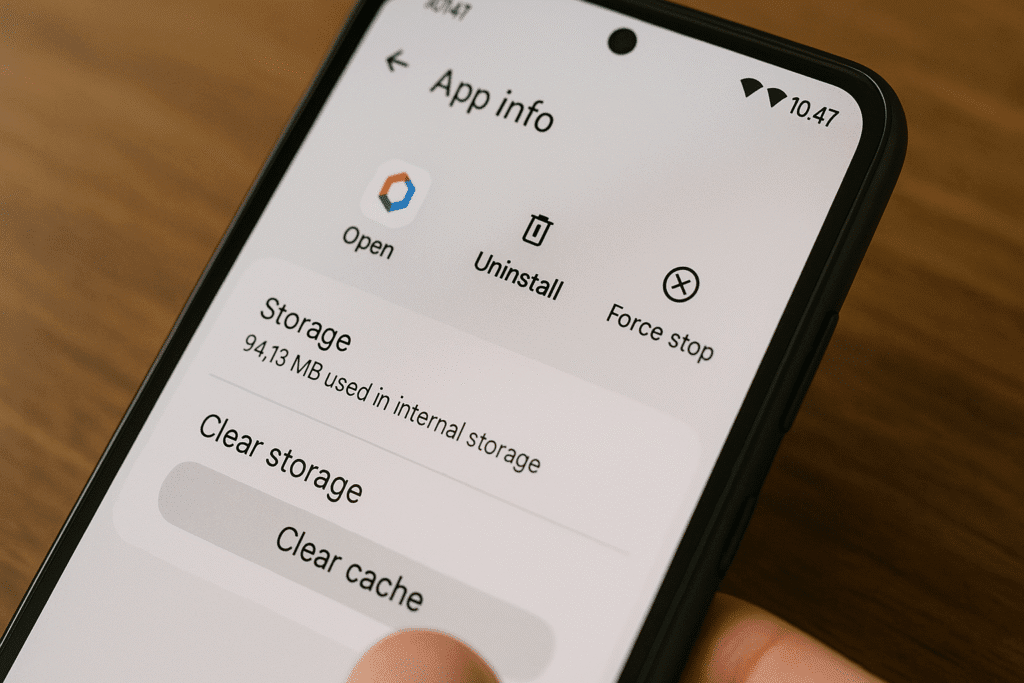
Every app on your phone stores temporary files, known as cache, to load faster. Over time, this data can become corrupted or simply too large, slowing things down. Clearing it can often speed up your phone immediately.
How to do it (System-wide):
- Go to “Settings” > “Storage” > “Cached data.”
- Tap on “Cached data” and confirm “OK” to clear it.
- Note: On newer Android versions, you might need to clear cache per app.
How to do it (Per app): - Go to “Settings” > “Apps” (or “Apps & notifications”).
- Tap on a specific app.
- Select “Storage & cache.”
- Tap “Clear cache.” Do not tap “Clear storage” unless you want to delete all app data.
- Uninstall Unused Apps
We all have apps we downloaded once and never touched again. These apps still consume storage space and might even run background processes, hence slowing your device.
How to do it:
- Go to “Settings” > “Apps.”
- Scroll through the list and identify apps you don’t use.
- Tap on the app and select “Uninstall.”
- Alternatively, long-press an app icon on your home screen or app drawer and drag it to the “Uninstall” option.
- Update Your Android Software
Software updates often include performance enhancements, bug fixes, and security patches. Keeping your Android operating system up-to-date is crucial for optimal speed and security.
How to do it:
- Go to “Settings” > “System” > “System update” (or “Software update”).
- Tap “Check for updates.”
- Download and install any available updates. Ensure your phone is charged and connected to Wi-Fi.
- Disable Live Wallpapers and Widgets
While visually appealing, live wallpapers and numerous widgets consume valuable RAM and battery life. They are constantly running and refreshing, thus impacting your phone’s performance.
How to do it (Live Wallpapers):
- Long-press an empty space on your home screen.
- Select “Wallpapers & style” (or “Wallpaper”).
- Choose a static image instead of a live wallpaper.
How to do it (Widgets): - Long-press a widget on your home screen.
- Drag it to the “Remove” or “X” icon that appears.
- Reduce Animations
Android uses various animations for transitions between screens and opening/closing apps. While they look smooth, they can make a slower phone feel even more sluggish. Reducing or turning them off can make your phone feel snappier.
How to do it:
- First, enable “Developer options”: Go to “Settings” > “About phone” and tap “Build number” seven times.
- Go back to “Settings” > “System” > “Developer options.”
- Scroll down to “Window animation scale,” “Transition animation scale,” and “Animator duration scale.”
- Change them from “1x” to “.5x” or “Animation off.”
- Use Lite Versions of Apps
Many popular apps, like Facebook, Messenger, and Google Go, offer “Lite” versions. These versions are designed to be smaller, consume less data, and use fewer resources, making them perfect for older or slower phones.
How to do it:
- Search for “[App Name] Lite” in the Google Play Store.
- Install the Lite version and uninstall the full version.
- Keep Your Apps Updated
Just like your operating system, individual app updates often bring performance improvements, bug fixes, and better compatibility. This ensures apps run smoothly on your current Android version.
How to do it:
- Open the Google Play Store.
- Tap your profile icon (top right).
- Select “Manage apps & device.”
- Tap “Updates available” and then “Update all” or select specific apps.
- Optimize Your Storage
A full phone is a slow phone. Freeing up space is one of the most impactful ways to speed up your phone. This involves deleting unnecessary files and moving others to cloud storage.
How to do it:
- Delete old photos/videos: Go to your Gallery or Google Photos, delete duplicates, blurry shots, and old memes. Consider backing up important media to a cloud service like Google Photos or Dropbox, then deleting them from your device.
- Download Manager: Check your “Downloads” folder for large, unneeded files.
- Google Files app: This app can help you identify and clean up junk files, duplicate files, and large media.
- Factory Reset Your Phone (Last Resort)
If all else fails, a factory reset can make your phone feel brand new. This process wipes all data and settings, returning your phone to its original state. Therefore, make sure you back up all your important data before proceeding.
How to do it:
- Go to “Settings” > “System” > “Reset options” (or “Backup & reset”).
- Select “Erase all data (factory reset).”
- Follow the on-screen prompts. You will need to enter your PIN or pattern.
Essential Cleanup Tips for Ongoing Performance
Beyond these immediate fixes, a few habits can help maintain your phone’s speed over time.
Manage Notifications
Excessive notifications not only distract you but also mean apps are constantly running in the background, consuming resources. Consequently, limiting notifications can save battery and improve performance. How to do it:
- Go to “Settings” > “Apps & notifications” > “Notifications.”
- Review apps and turn off notifications for those that aren’t essential.
Limit Background App Refresh
Many apps continue to run and refresh their content even when you’re not actively using them. This can significantly slow down your phone.
How to do it:
- Go to “Settings” > “Apps.”
- Select an app, then “Mobile data & Wi-Fi” (or “Data usage”).
- Toggle off “Background data” or “Allow background activity.” Repeat for resource-hungry apps.
Regular Reboots
As mentioned earlier, a simple reboot is a powerful tool. Make it a habit to restart your phone at least once a week. This clears out lingering processes and gives your phone a fresh start.
Final Advice: When to Consider an Upgrade
While these tips can significantly speed up your phone, there comes a point when an older device simply can’t keep up with modern software and apps. If your phone is several years old, no longer receives software updates, or consistently struggles even after applying all these fixes, it might be time to consider an upgrade. Until then, implement these strategies to speed up your phone and enjoy a smoother, more responsive Android experience!